


Feature Wiki
Tabs
Guided Tour
Page Overview
[Hide]1 Initial Problem
- Some users actively explore learning plattforms. Some other users feel anxious and want guidance. They feel insecure about their options.
- Complex software requires complex navigation. We have been discussing and implementing improvements for a long time, but ILIAS will likely never be completely self-explanatory.
- The current Online Help supports users, but makes it hard to refer to concrete navigational controls. It is much easier to show these things in person by pointing at the screen.
It could be used for classic Help contexts, onboarding of new users and even for a new and shiny ILIAS demo!
2 Conceptual Summary
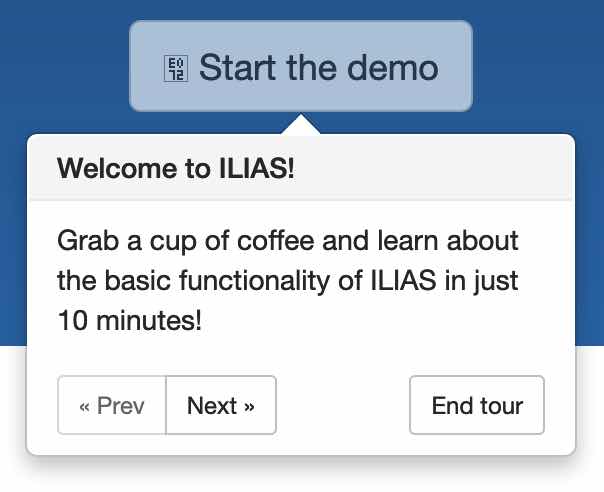
The Guided Tour complements the work instructions and the tool tips.
- Guided Tours can be defined in the help administration. They consist of multiple steps that can point to various user interface elements.
- Guided tours can be triggered on specific screens.
- Guided Tours cannot open or click elements, they merely draw attention to the existence of element.
- The content of explanation texts can be edited using the page editor.
- The content is displayed within a KS popover element.
Starting Guided Tours
- Guided Tours are presented once a users opens a screen.
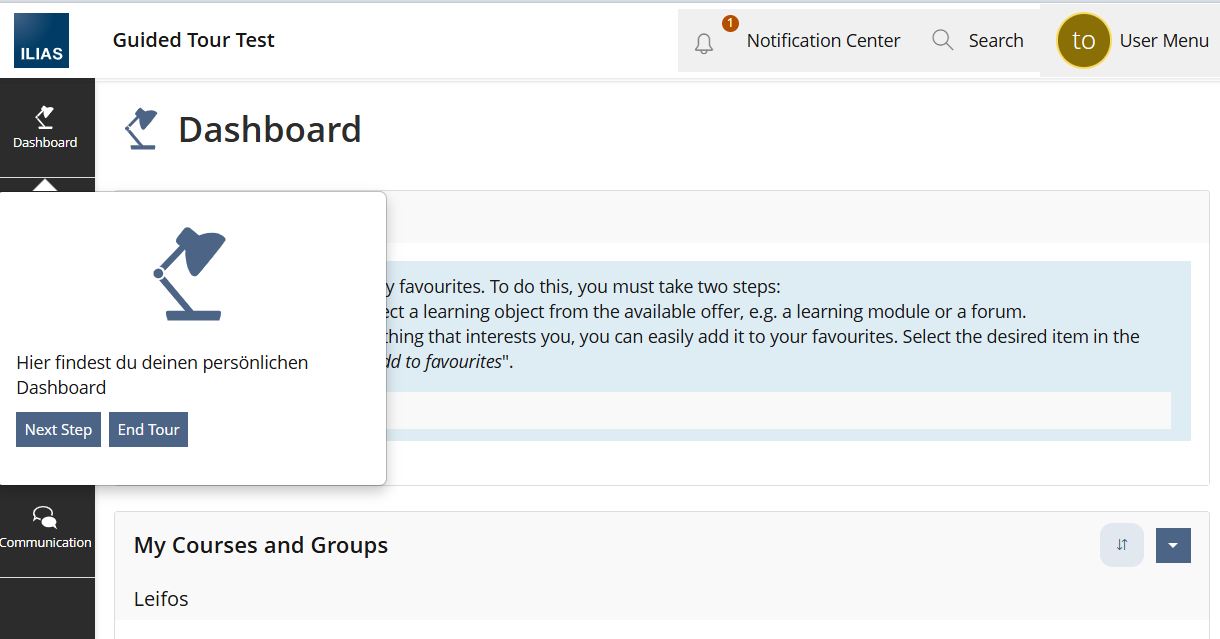
- She is presented with popovers pointing to important controls. The steps are presented in a predefined sequence.
- There is no manual starting of a Guided Tour.
- In order to present the Tour only once, ILIAS must save that somebody has never seen the tour, refused to see it, completed it.
Ending Tours
- User can only end the Guided Tour by clicking on [End Tour].
- Any Tour that was ended will never be shown again. Users can not call upon the Guided Tour again.
- Unless the Tour was ended it will be presented again if user revisits the context.
Adressability of controls
The following UI elements can be addressed:
- Top main bar elements
- Tab elements
- Metabar elements
- The (first) toolbar of the main content
- The (first) form of the main content
- The (first) table of the main content
- The (first) primary button of the main content
Note: Usually screens should only contain one toolbar, form, table or primary button. If the main content contains multiple of these elements, the first one will be adressed.
Managing Guided Tours
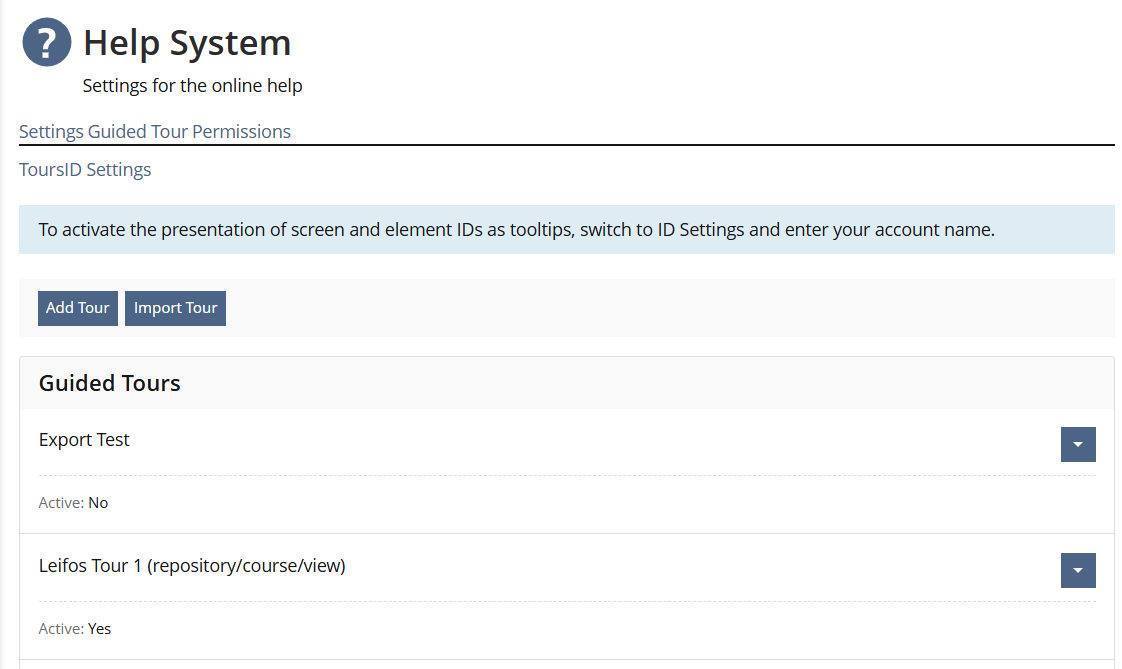
- Guided Tours are added and managed in a new tab at Administration > System Setting and Maintenance > Help System > Guided Tours
- Tours can be activated for specific screens, identified by screen IDs
- Tours can be activated depending on permission. Requests on screens must contain a ref id. "Read", "Edit Settings" and "Create" (Any creation permission) can be selected.
- Steps can be added to Tours. Each steps refers to an UI element type (see list above). Mainbar, tab and metabar elements need an additional ID.
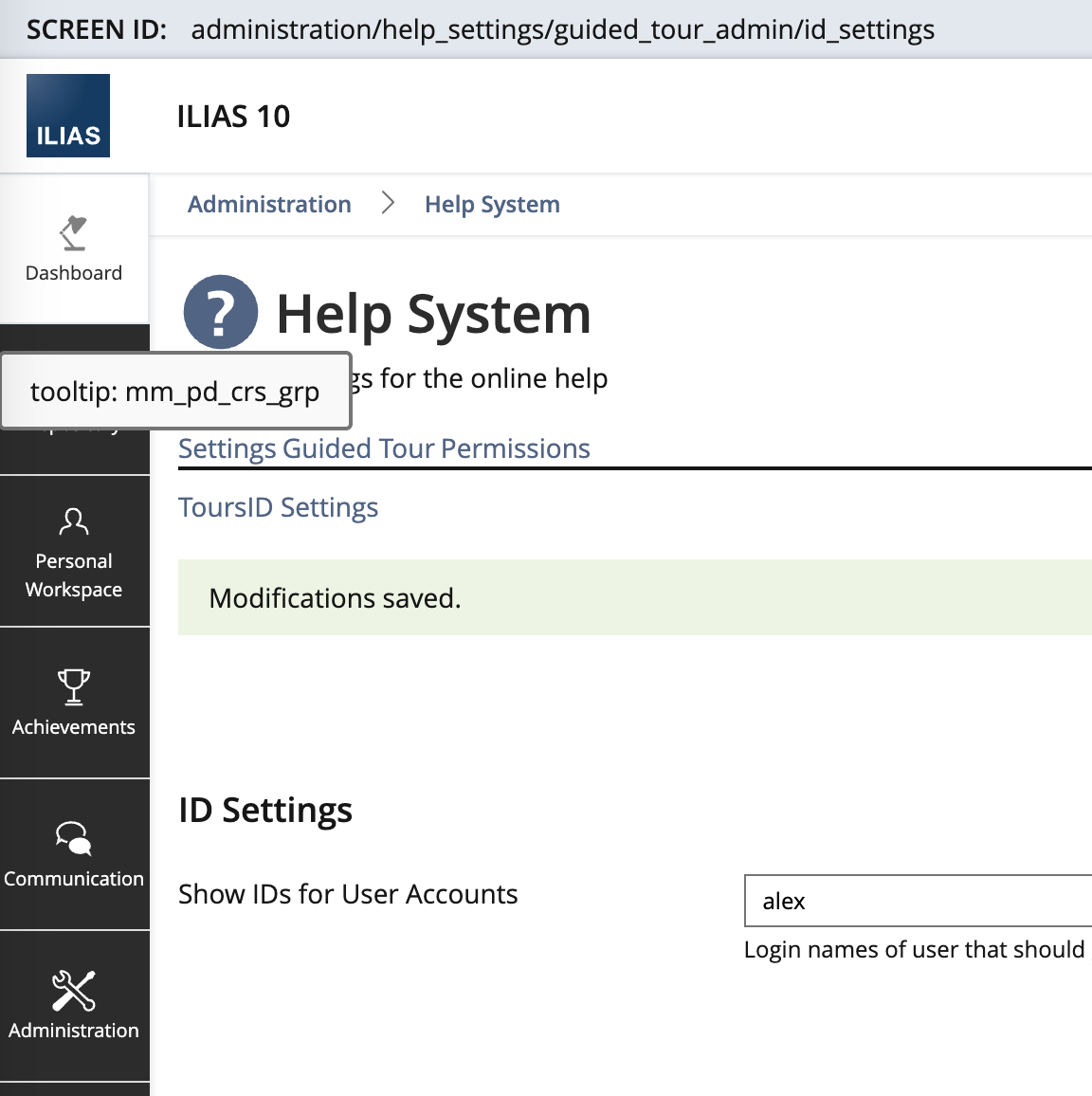
- ID presentation can be activated for specified accounts. Similar to the general help, tooltips will provide the IDs, once activated.
3 User Interface Modifications
3.1 List of Affected Views
- potenially all screens
- Administration > System Setting and Maintenance > Help System > Guided Tours (new)
3.2 User Interface Details
3.2.1 Creating guided tours
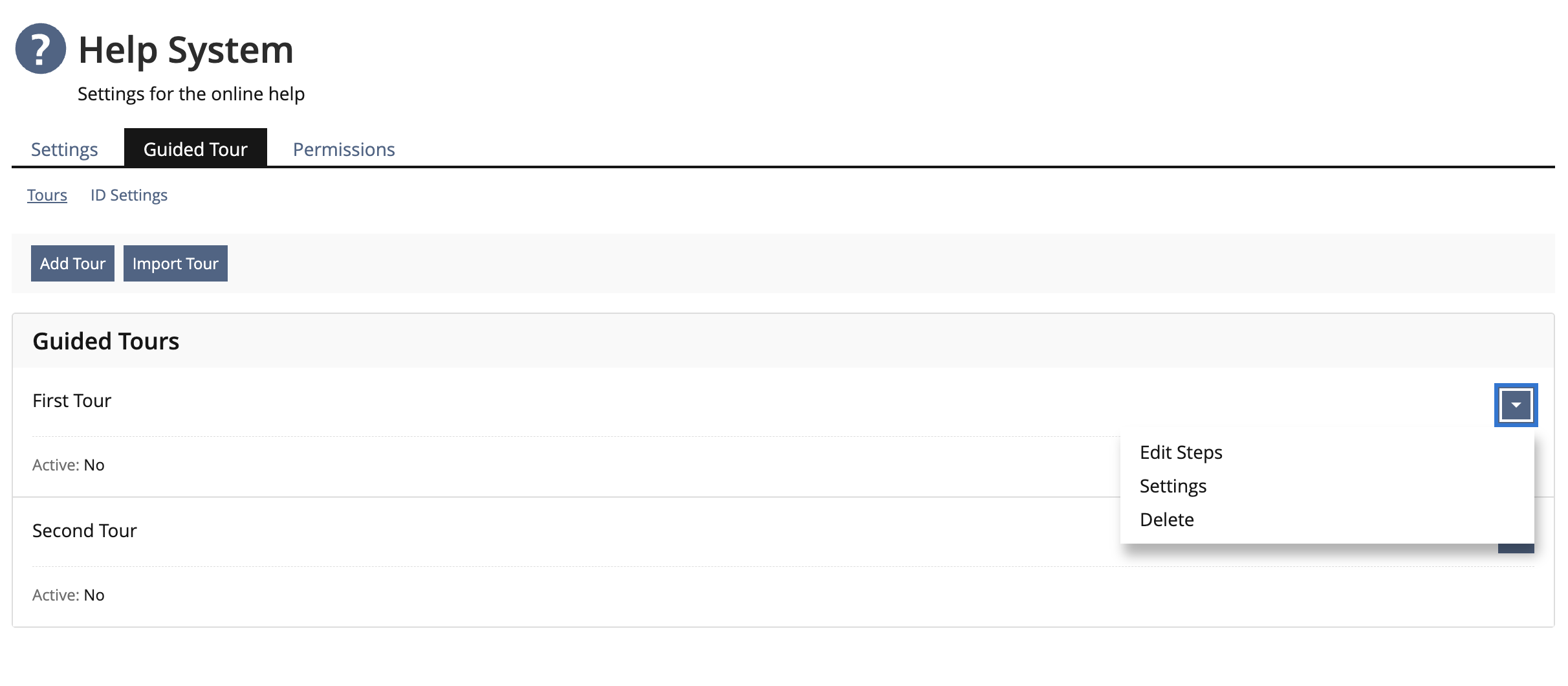
Main Tour List for adding, importing, editing and deleting tours.

Activating ID presentation for single accounts in tour administration.
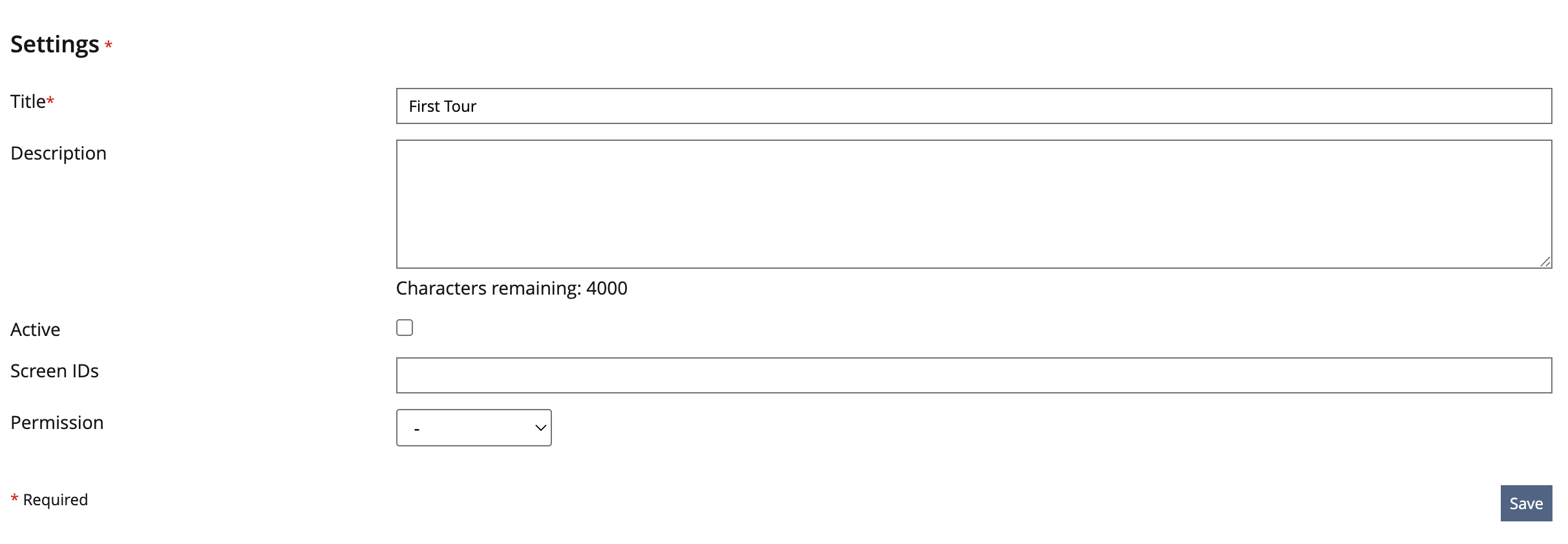
Tour Settings
- Title
- Description
- Active (Checkbox)
- Screen IDs (comma separated)
- Permission (optional)
- Language (Dropdown, missing in mockup)
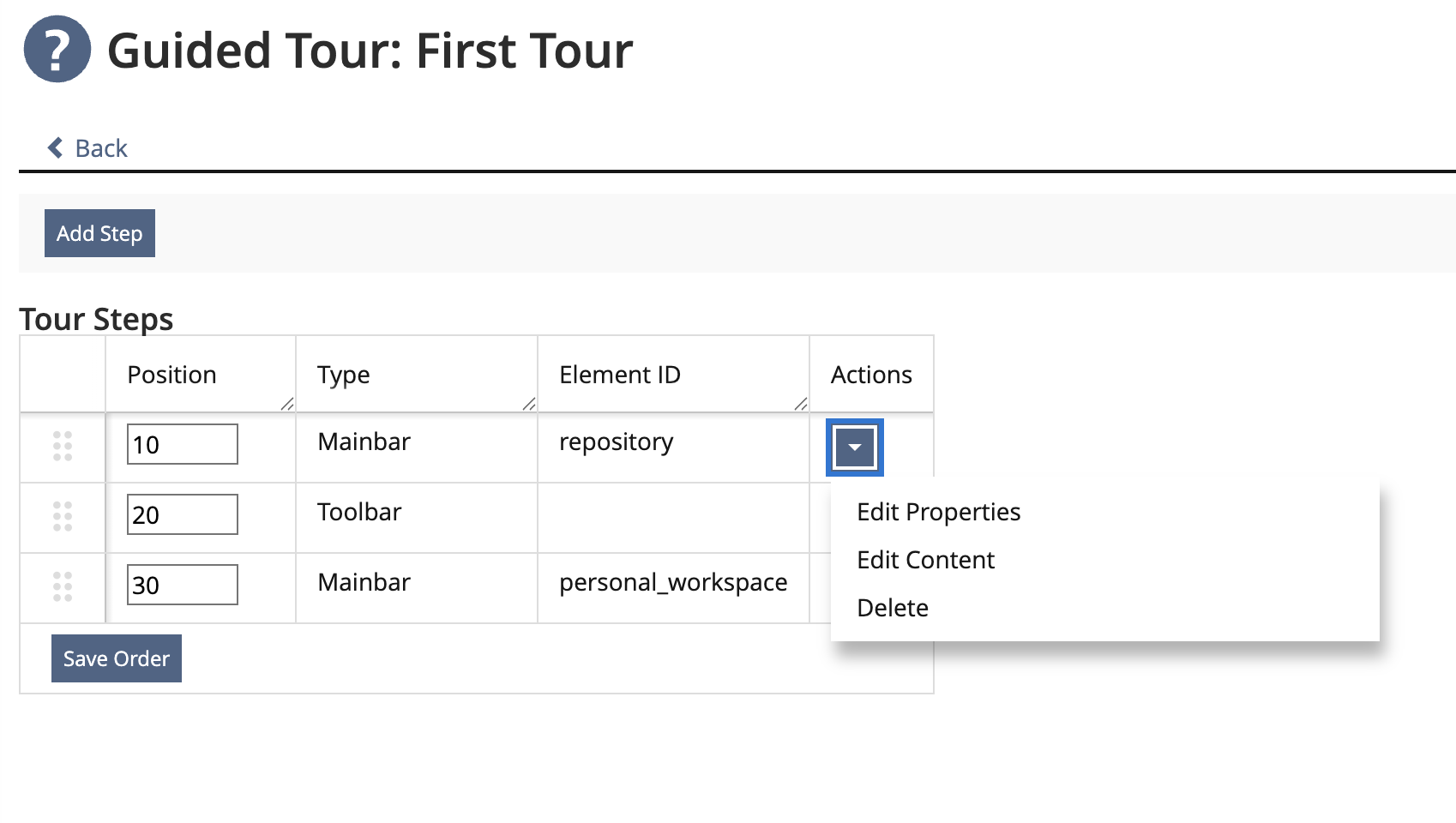
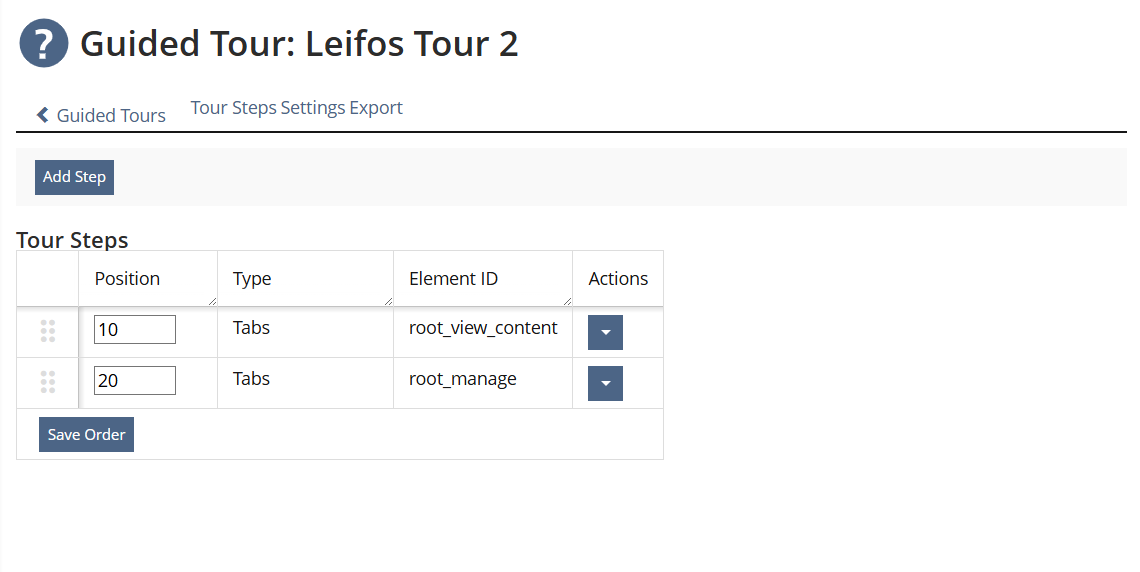
List of steps for a single tour.
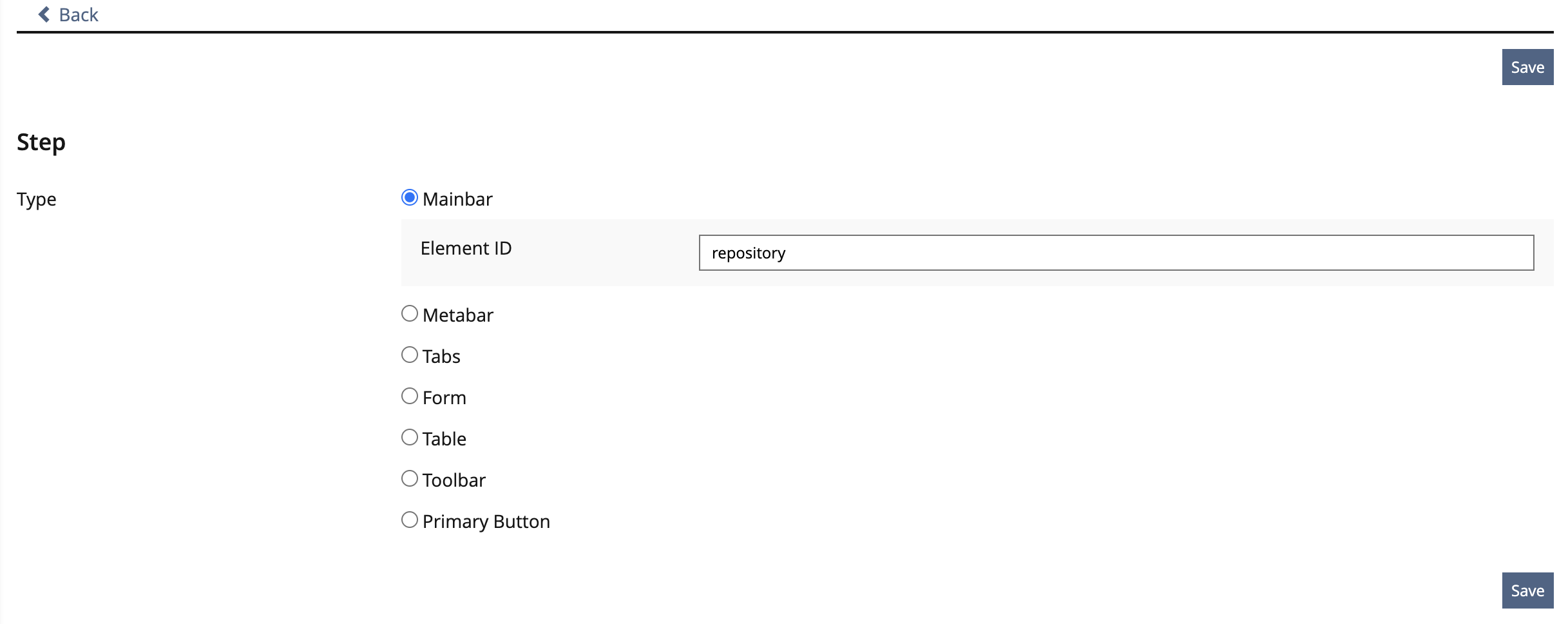
Step Properties
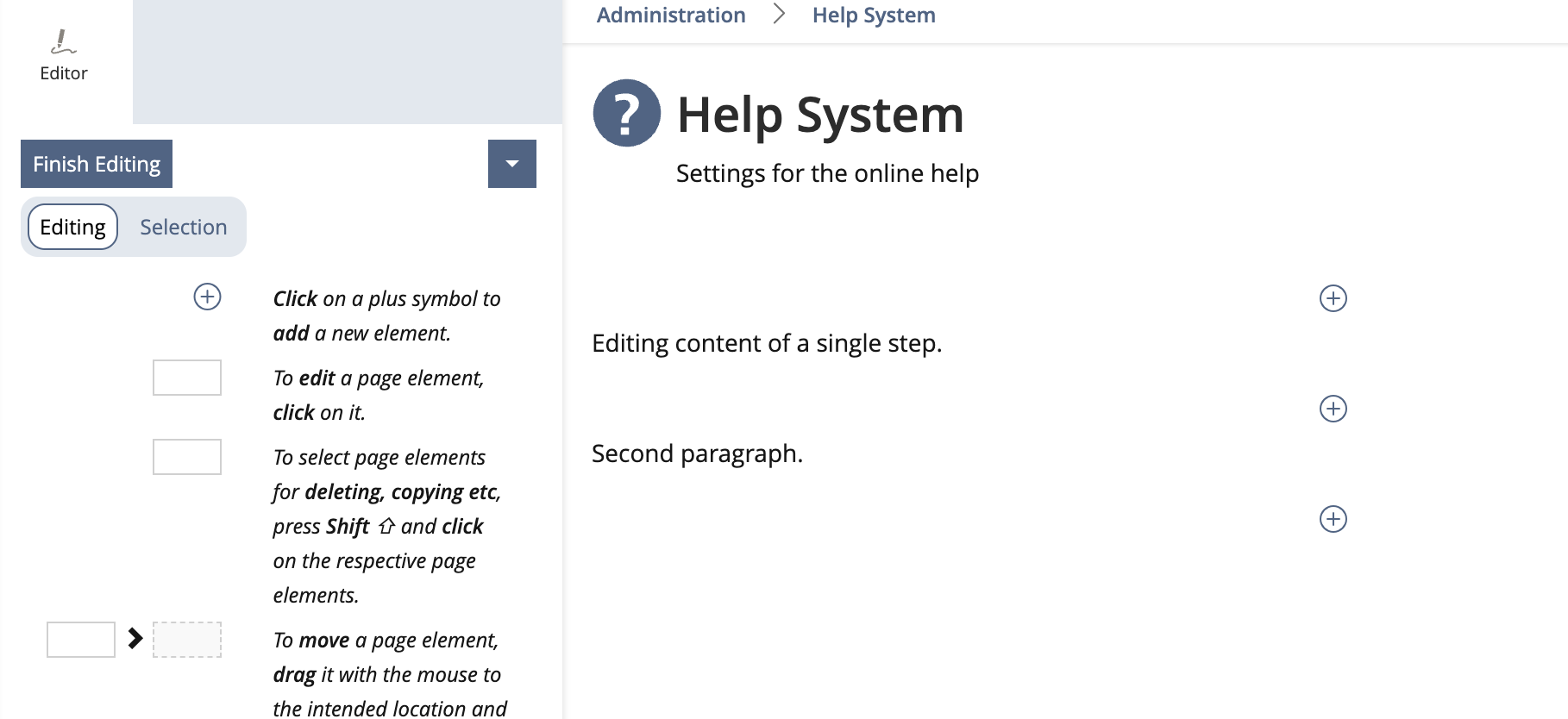
Editing content of a step. Since the presentation space in the popovers will be limited, only the following content types are supported:
- Text (incl. simple lists)
- Media
- Sections
3.2.2 Presenting Guided Tours
Each step will be presented in a KS popover.
If multiple tours are active on the same screen, they will be presented subsequently. The first tour must be ended before the second will be presented.
If the user requests a different screen, tour presentation will stop.
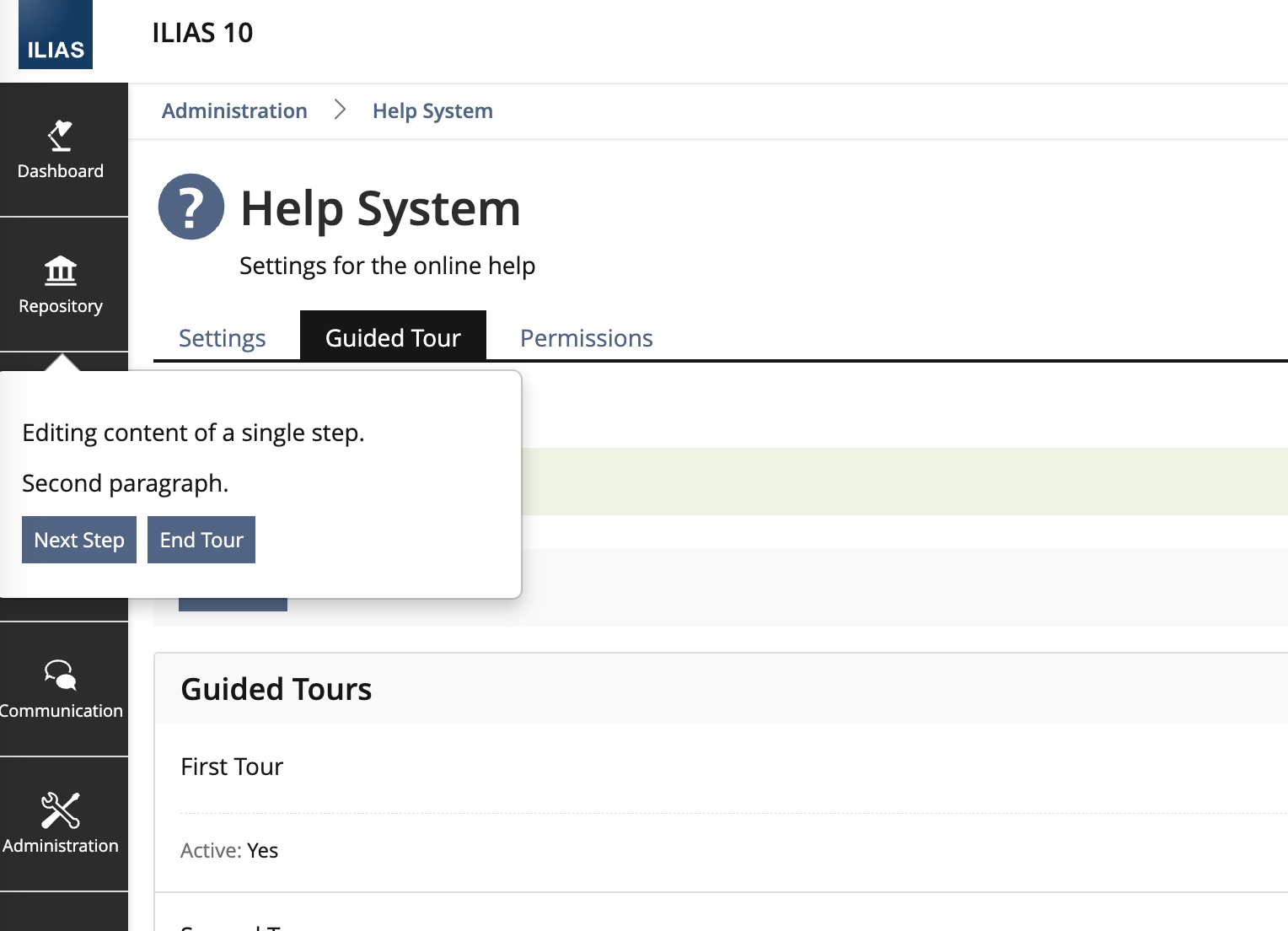
We would like to use the Kitchensink-Element Popover for presenting the Guided Tour.
3.2.3 Dev Issue, 27 Oct 2025, Resetting Tours
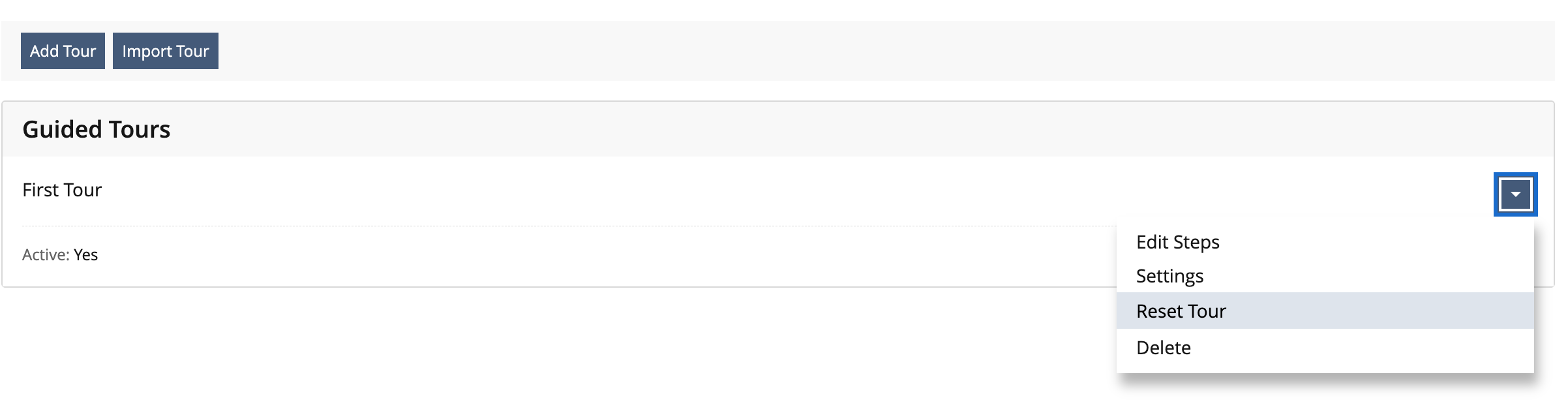
An admin can reset a tour. This will reset the presentation status of all users and present the tour even to users, who finished the tour before, again.
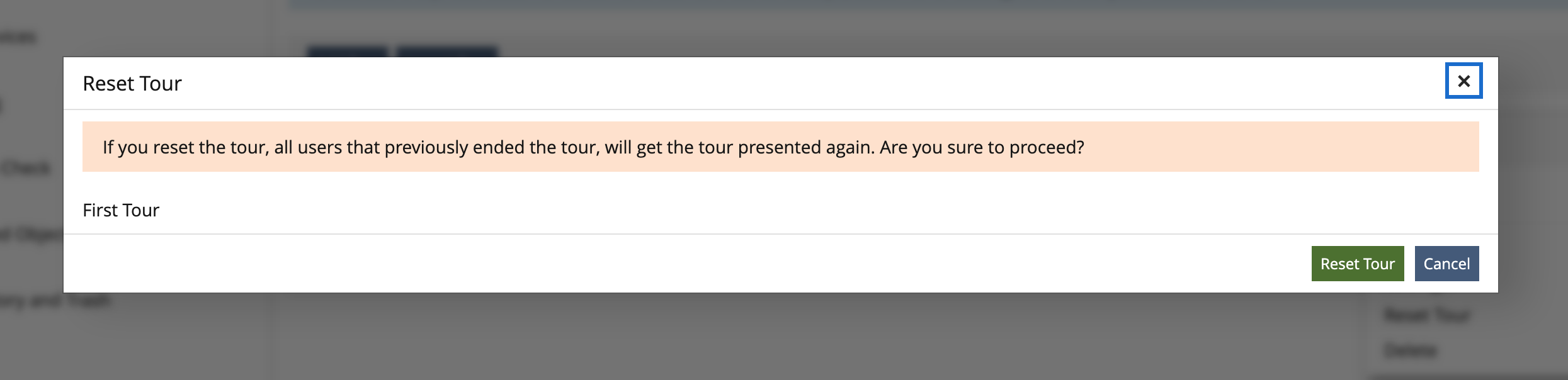
The administration menu will get an action "Reset Tour". After clicking a confirmation dialog will be presented.
After confirming the step, the tour will be reset and all users will get presented the tour again.
3.3 New User Interface Concepts
No new Interface elements.
4 Technical Information
The IDs being used depend on screen and element IDs as being provided through the global screen or the legacy tab service, similar to the help system.
These IDs may change with ILIAS versions, in extreme cases also with minor releases, e.g. if features are added/removed or refactored in minor releases (which should usually not be the case).
There will be no automatic migration for these changes. Guided tour authors might need to adopt changed IDs for new ILIAS releases.
5 Privacy Information
It will be stored whether or not a user has shut down the tour / taken the tour. A table including User ID and Tour ID will store this information. Records will be deleted, if users or tours are being deleted.
6 Security Implications
No security implications.
7 Contact
- Author of the Request: Tödt, Alexandra [atoedt]
- Maintainer: Killing, Alexander [alex]
- Implementation of the feature is done by: {The maintainer must add the name of the implementing developer.}
8 Funding
If you are interest in funding this feature, please add your name and institution to this list.
- ILIAS.nrw (Heinrich Heine Universität Düsseldorf)
9 Discussion
Kruse, Fabian [Fabian], 23.11.2020: This would be a great way to contribute to better user adaptation of ILIAS. It could be used not just as part of the help, but also in our new demo and in other places.
I would consider using existing software to implement this, like the tools linked above.
Kunkel, Matthias [mkunkel], 30 JUL 2025: I read this article multiple times but do not really understand how I would create a guided tour for the Dashboard for example.
- I understand how to start (screenshots 1 and 2 in chap. 3.2). The Screen ID defines the screen where my guided tour takes place. (BTW: it is not explicitly mentioned but a guided tour is always restricted to one screen, right?). I get the screen ID when I activate the related personal setting on my installation, right? Is there anything else to do?
- After having created a new guided tour I am redirected to screenshot 1 where all existing guided tours are shown, right? (BTW: how about showing the related Screen ID in an additional column as a good additional information for each guided tour?)
- Next step I assume is to ‘edit’ a guided tour. I can imagine that there is a related action behind the dropdown on screen 2, right?
- Now I am on screen 3, right? Here the toolbar offers me the option ‘Add Step’ – which brings me to screen 4, right?
- Now I have to define the place on the screen where the ‘guided tour step’ should be attached to and shown by adding a UI-ID. But how do I get the UI-ID (or UI ID?) of an element for which I would like to add a ‘blobb’ (or popover) with some information for a user? Example: For my Dashboard tour I would like to have a guided tour step for the block ‘Kalender’ or for ‘To-Do’.
- After having saved this ID I get back to screen 3 with all existing steps of my tour. But how do I get to screen 5 where I enter the content of my tour step? The ‘Edit’ action brings me back to the form where I entered the UI ID, right? Shoudn't there be an additional action ‘Edit Content’?
Additional questions:
- In the chapter ‘New User Interface Concepts’ is written ‘We would like to use the Kitchensink-Element Popover.’ Has this been inserted here by mistake and belongs to cha 3.2? Or do you want to change/extend the existing popover element?
- Wouldn't it make sense to be able to activate and deactivate entire Guided Tours or individual steps? According to the current description, you would have to create a Guided Tour on a running installation and could not prepare it in a calm manner. And importing a finished Guided Tour seems not be part of this feature request.
Tödt, Alexandra [atoedt], 30 JUL 2025: on Matthias's questions
- A Guided tour is restricted to one screen / tab / view. Screen IDs are activeted in the set up as with the help Learning module. The editorial team assumes some basic guided tours will be created on help.ilias.de and then published to the community for re-use.
- Yes, you are placed at the Tab guided Tour Mock up 1. I am not sure about the column Screen ID. To most people a Screen ID is ghibberish.
- Your newly created guided Tour has an edit action in Mock up 1.
- Clicking the Edit action of a guided Tour (mock up 1) opens the underworld with the Guided Tour TITLE table of mock up 3. Clicking on ‘Add Step’ –button brings you to mock up 4.
- The UI-ID was prepared by Fabian Schmid and is switched on with the Screen IDs can be harvested from the respective tool tip. Only come clickable elements have UI-IDs so far. Secondry Panels do not have UI-ID.
- Mock-Up 3 is missing an Edit Content action, my bad.
Additional questions:
- We will use the existing Pop-over. I moved the text to 3.2.
- Guided Tours can be exported an imported. I will add Mock ups.
Lowe, Simon [simon.lowe], 13 AUG 2025: Are the content types at the IPE restricted or is it possible to add all exisiting content types for a Guided Tour Step?
Killing, Alexander [alex], 14 Aug 2025: I updated the mockups reflecting the ongoing implementation. I added some additional information, too. a) The ID presentation can be activated in the administration. b) It should be possible to (de-)activate complete tours. c) From my side it would be ok to activate a tour for multiple screen IDs, however screen requests will always reset a tour. d) Yes, I would restrict content types to a minimal set of element types, see list above.
JourFixe, ILIAS [jourfixe], 18 AUG 2025: We highly appreciate this suggestion and accept the feature for trunk. In addition to the feature request Alexander notified us that
- the content style used by the Guided Tour is the default content style of an installation. There is no specific content style for Guided Tours.
- the 'Edit Settings' permission within the Help administration is needed to create a Guided Tour and edit it while ‘Read’ permission shows only which tours exist and does allow any changes.
Killing, Alexander [alex], 27 October 2025: When testing the guided tour, we realised, that a small additional administrative feature would make life easier: The possibility to reset a tour. This means, the tour will be presented to all users again, even the ones that already finished the tour. This is not only great for testing, but also makes it easier to revise a tour and make it available again.
JourFixe, ILIAS [jourfixe], 27 OCT 2025: We highly appreciate the option to reset a tour for all users and accept it for this feature request, too.
10 Implementation
Test Cases
Test cases completed at 2025-10-24 by Gribchenko, Kseniia [ksgrie]
- C85109 : Anzeige von screen IDs, element IDS und Tooltips aktivieren
- C85110 : Guided Tour erstellen
- C85111 : Basisseite der Guided Tour festlegen
- C85112 : Schritt zu Tour hinzufügen
- C85113 : Typ des Schritts bearbeiten
- C85114 : Inhalt eines Schritts erstellen
- C85115 : Reihenfolge der Schritte ändern
- C85116 : Schritt löschen
- 85121 : Guided Tour löschen
- C85117 : Guided Tour aktivieren
- C85118 : Guided Tour zurücksetzten
- 85122 : Guided Tour exportieren und importieren
- C85119 : Guided Tour durchführen
- 85122 : Guided Tour exportieren
- 85124 : Guided Tour importieren
Approval
Approved at 2025-10-27 by Koch, Tobias [kochtob], HHU Düsseldorf/ILIAS.nrw.
Roadmap and Recommendations
Roadmap Guided Tour
The feature depends on several parts of the general infrastructure provide its features. Some of them are already integrated in last generation components like global screen or ui framework, others rely on legacy behavior. But also the collaboration with ui elements and the global screen has sometimes a workaround-ish state.
Obtaining IDs for UI Elements
These are abstract IDs that are used to be stored with the different steps of a guided tour. If these IDs change in the code, the steps in the guided tour may break.
- Screen ID: The screen ID is obtained from an ilCtrl observer implemented by the Help component. The IDs are derived from the class names being involved in the ilCtrl flow. These class names may be subject to technical refactorings in the components, so they may change with major releases. It is possible to decouple this via attributes in the class code, but the JF decided not to introduce this decoupling via rector. So developers would need to take care of the stability of screen IDs individually.
- Metabar and Mainbar button IDs: The help component implements the AbstractModificationProvider provided by the global screen service. This allows to collect all items (buttons) and their internal identifiers. These should be quite stable, since they are also used, e.g. for the main menu configuration in the ILIAS administration.
- Tab IDs: Tabs are a legacy UI component in ILIAS. They are not collected by the global screen service, thus providing their IDs to the help component is part of the legacy tab code. Components using tabs need to provide these IDs in general, since they are used, e.g. for activation of tabs, too. The current approach results in a high coupling of the help and tab component, even if these are only a few lines.
Presenting UI Element IDs
Authors of guided tours need to know the IDs of screens and ui elements, since they need to enter these IDs when creating steps for these elements.
- Screen ID: The screen ID is displayed by implementing the AbstractNotificationProvider interface of the global screen service.
- Metabar and Mainbar button IDs: These IDs are displayed by attaching KS Help\Topic ui element to the items in the AbstractModificationProvider implementations using withTopics() methods.
- Tabs IDs: The tabs are using KS link elements and attach KS Help\Topic similarly. However the coupling is again higher, since this code is part of the legacy tab implementation.
The presentation of the KS Help\Topic ui elements is suffering from a longtime bug which is already part of ILIAS 10, https://mantis.ilias.de/view.php?id=42421
Mapping Element IDs to HTML DOM IDs
The content of guided tour steps is displayed in a KS popover element. The popover is placed via Javascript closed to the target element. The are not attached to the usual click event of these elements, since this is not the desired behaviour. The target elements (e.g. mainbar entries) should still do their normal action „on click“.
The DOM IDs of KS ui elements are generated during runtime for each request. The get different IDs for each request, thus the „identification part“ of an ID concept is not well supported through requests.
The guided tour stores the mapping by attaching JS code for these elements. This is not necessary for the Screen IDs or for elements that are not identified by their ID (first form or first table of a view).
- Metabar and Mainbar ID mapping: As part of a AbstractModificationProvider implementation, the guided tour components attaches Javascript calls like
il.guidedTour.addMapping('$name', '$id');to the items. - Tab ID mapping: The tabs call
$ilHelp->registerTabLinkwhich adds ail.guidedTour.addMapping('$name', '$id');call to the links.
Attaching the Popover to DOM elements
As written above this cannot be done using the usual mechanism „on click“ of the target elements, since the popover is shown and attached to the target elements via Javascript.
Like many KS elements the popover provides a method to obtain a signal ID. This ID can be used in an event to show the popup. The event can contain a triggerer parameter to attach the popover to a DOM element. If this is considered an official supported part if the interface is questionable. Additionally attaching the element this way, also binds the presentation of the popover to the click event of the DOM element which is not desired. It required a workaround to inject a „trigger: manual“ behavior here which does not seem to be sustainable.
Some elements like the first form, table or primary button are not identified by any ID provided by global screen or KS elements. These elements are retrieved via Javascript/CSS selectors during runtime. Even if the main HTML structure of the ILIAS view is pretty stable, this part of the code might need adaptions with every major release.
Recommendations for Improvements
- The popover element should get an official supported Javascript interface to allow presentation and attaching to other KS elements. It should also provide a method to hide all popovers.
- The global screen component should organize more elements similar to the mainbar and metabar, at least tabs, maybe also forms and tables.
- Internal IDs from the global screen should be rendered as data attributes with the KS elements. This would make it possible to remove the ID mapping in the guided tour.
- The KS page element should provide a stable structure that enables other components to address elements like forms or tables in the main content and other areas reliably. This is also important for skins or plugins trying to modify these elements.
- The KS tooltip element needs to be fixed. It should be possible to use it on all major interactive elements.
https://github.com/ILIAS-eLearning/ILIAS/blob/release_11/components/ILIAS/Help/ROADMAP-guided-tour.md
Last edited: 28. Nov 2025, 14:26, Killing, Alexander [alex]